I just started using Windows OS and its really not cool to have these Arrows on desktop icons. All my Games and Softwares I use have this ugly Arrow at the left bottom corner and its not good. I always wanted to have my own customized desktop, So I thought it will be a good idea to make an Article on this. This trick will work for Windows 7, 8, 10.
Steps to Remove Arrow from Shortcut Icons on Desktop: -
1) Click on Windows button on your keyboard and Type regedit.
2) Registry Edition will appear.
3) Navigate to :-
HKEY_LOCAL_MACHINE\SOFTWARE\Microsoft\Windows\CurrentVersion\Explorer
4) Right Click on Explorer and go to New and then Click on Key.

5) A new Key will automatically create with a default name of New Key #1.
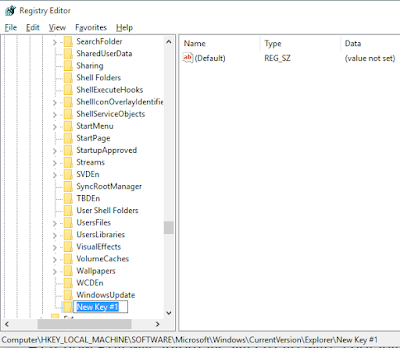
6) Change the name from New Key #1 to Shell Icons.
7) Right click on Shell Icons (the Key you just Created) and go to New and click on String Value.

8) You will see a new String Value has been created, Rename it to 29 and then double click on it.
9) In Value data copy/paste %windir%\System32\shell32.dll,-50 and click on OK.

10) Restart your PC and you can then see the changes.
NOTE : YOU CAN UNDO THIS ACTION BY JUST DELETING THE KEY YOU CREATED AND RESTARTING YOUR PC AFTER THAT.
NOTE : THE REGISTRY EDITOR IS VERY PRECIOUS DO NOT CHANGE ANYTHING ELSE OR YOU CAN DESTROY YOUR WINDOWS.
Follow @XAppollo18X
Tweet
Tweet to @XAppollo18X
Steps to Remove Arrow from Shortcut Icons on Desktop: -
1) Click on Windows button on your keyboard and Type regedit.
2) Registry Edition will appear.
3) Navigate to :-
HKEY_LOCAL_MACHINE\SOFTWARE\Microsoft\Windows\CurrentVersion\Explorer
4) Right Click on Explorer and go to New and then Click on Key.

5) A new Key will automatically create with a default name of New Key #1.

6) Change the name from New Key #1 to Shell Icons.
7) Right click on Shell Icons (the Key you just Created) and go to New and click on String Value.

8) You will see a new String Value has been created, Rename it to 29 and then double click on it.
9) In Value data copy/paste %windir%\System32\shell32.dll,-50 and click on OK.

10) Restart your PC and you can then see the changes.
NOTE : YOU CAN UNDO THIS ACTION BY JUST DELETING THE KEY YOU CREATED AND RESTARTING YOUR PC AFTER THAT.
NOTE : THE REGISTRY EDITOR IS VERY PRECIOUS DO NOT CHANGE ANYTHING ELSE OR YOU CAN DESTROY YOUR WINDOWS.